
As we dive into 2026, the world of gaming monitors continues to evolve, with USB-C technology taking center stage. This comprehensive guide will explore the top USB-C gaming monitors available this year, their features, and why they're becoming an essential part of any serious gamer's setup.
1. ASUS ROG Strix XG27UCG Best all‑around 4K USB‑C gaming monitor

Category |
Specification |
Screen Size |
27-inch |
Resolution |
4K UHD (3840 × 2160) |
Panel Type |
Fast IPS (High color accuracy + ultra-fast response) |
Native Refresh Rate |
4K @ 160Hz |
Dual Mode (Competitive Mode) |
One-click switch to 1080p @ 320Hz |
Response Time |
1ms GtG |
Best For |
High-end PC gaming, 4K AAA titles, competitive esports, PS5 / Xbox Series X |
1. Dual-Mode Power: Essentially Two Monitors in One
This is the kind of display that feels like a “buy one, get one” deal:
- 4K / 160Hz – Perfect for AAA titles with maxed-out visuals and razor-sharp detail.
- 1080p / 320Hz – Built for competitive gaming, doubling your frame rate and delivering insanely fast responsiveness.
One monitor that satisfies both the “graphics purist” and the “performance fanatic.”
2. Ultra-Fast Response: Fast IPS Panel
It’s not OLED-level expensive, but it doesn’t need to be. With a blazing-fast 1ms (GtG) response time and ASUS’s proprietary ELMB Sync technology, motion stays crystal clear even during rapid flick shots. No heavy ghosting, no smeared trails you’d normally expect from standard IPS panels.
3. 2026-Ready Desktop Versatility
- USB-C single-cable setup – Connect directly to a Steam Deck or smartphone and enjoy big-screen gaming instantly.
- Smart stand design – Features a built-in phone holder slot and a 1/4" screw mount (perfect for attaching a camera), making it ideal for gaming while watching guides or streaming at the same time.
2. Dell S2725QC Best value 4K USB‑C option

Key specs
Category |
Specification |
Screen Size |
27-inch |
Resolution |
4K UHD (3840 × 2160) |
Panel Type |
IPS (Stable color performance, wide viewing angles) |
Refresh Rate |
100Hz (Smoother than traditional 60Hz; comfortable for work and casual gaming) |
Color Coverage |
99% sRGB |
Brightness |
350 nits |
Best For |
Productivity, home office setups, students, clean desk aesthetics, and casual gaming (e.g., LoL and light titles) |
1. 4K Resolution + 27-Inch Size
Crisp, sharp text and plenty of screen real estate. Ideal for multi-window productivity and video editing timelines, offering a comfortable and detailed viewing experience.
2. 120Hz Refresh Rate + Low Input Lag
Significantly smoother than traditional 60Hz or 75Hz office monitors. Mouse movement, window dragging, and both console and PC gaming feel noticeably more responsive and fluid.
3. HDMI 2.1
Excellent compatibility with consoles like PS5 and Xbox Series X, supporting 4K at 120Hz. A great choice for “after-work gaming” without needing a dedicated esports monitor.
4. USB-C + 65W Power Delivery + USB Hub
A single cable handles power, video, and data transmission for your laptop. Cleaner desk setup, fewer cables, and a practical solution for a primary productivity display.
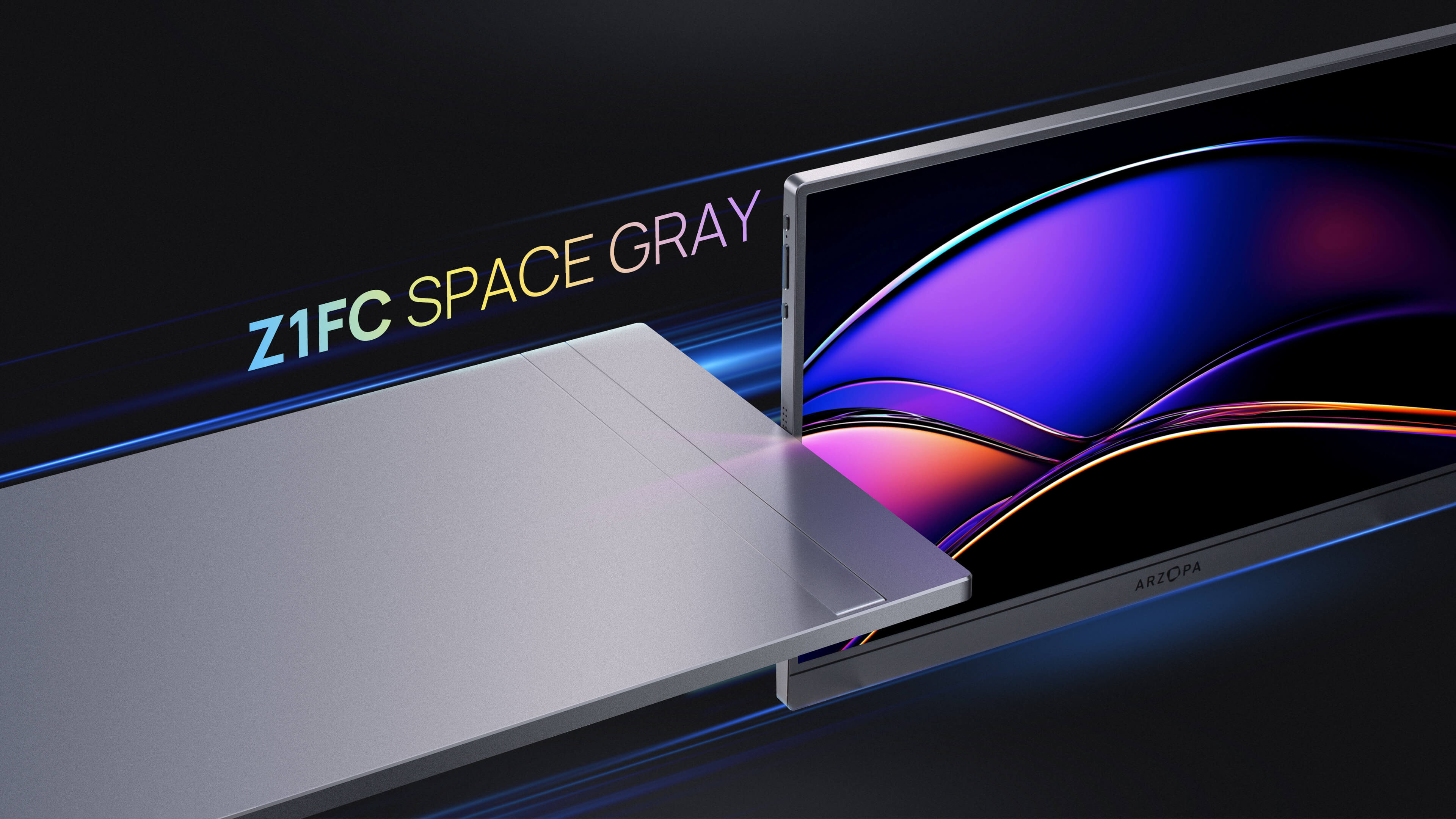
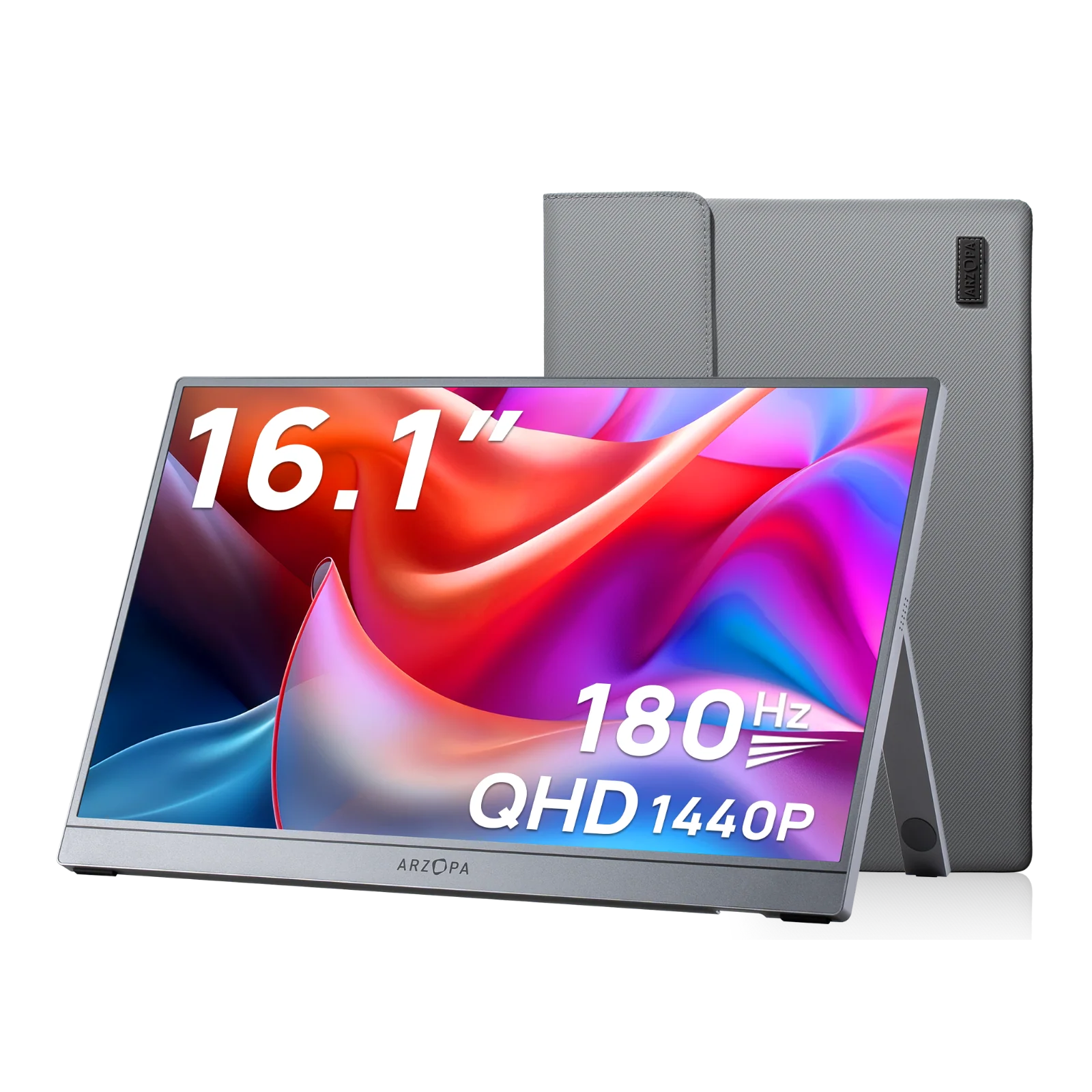
3. Arzopa Z3FC Portable USB‑C Gaming Monitor(laptop, Steam Deck, Switch)

Key specs
Category |
Specification |
Screen Size |
16.1-inch |
Resolution |
2.5K (2560 × 1440) |
Aspect Ratio |
16:9 |
Panel Type |
IPS |
Brightness |
400 cd/m² |
Color Coverage |
107% sRGB |
Response Time |
9ms |
Refresh Rate |
180Hz |
Contrast Ratio |
1000:1 |
Color Depth |
8-bit |
HDR Support |
HDR10 |
Gaming performance
180 Hz gives noticeably smoother motion than 60 Hz/120 Hz and is great for casual or mid‑core gaming on the go.
Response time (around 9 ms) is fine for casual gaming but not on par with top desktop esports monitors, so serious competitive players may still see some blur.
Contrast is only average for IPS, so dark scenes can look a bit flat, and HDR support is effectively meaningless due to limited contrast and HDR implementation.
Image quality and usability
Brightness is relatively high for a portable (close to 400 nits), which helps in bright rooms or travel setups.
Covers about 99% sRGB and ~78% DCI‑P3/AdobeRGB: good for general use, not ideal for color‑critical work versus OLEDs or higher‑end panels.
4. Choosing the Right USB-C Monitor for Your Gaming Needs
When selecting a USB-C gaming monitor, there are several factors to consider:
Resolution
The resolution you choose can significantly impact your gaming experience and system requirements:
- 1080p: Best for budget gamers or those with less powerful GPUs.
- 1440p: The sweet spot for most gamers, offering a great balance between visual quality and performance.
- 4K: Provides stunning visuals but requires a high-end GPU like an RTX 4080 or 4090 to run games smoothly at high refresh rates.

Panel Type
Different panel technologies offer various advantages:
- TN (Twisted Nematic): Fastest response times but poor color accuracy and viewing angles.
- VA (Vertical Alignment): Better contrast ratios but slower response times compared to TN and IPS.
- IPS (In-Plane Switching): Excellent color accuracy and wide viewing angles, with good response times.
- OLED: Produces true blacks and supports HDR beautifully, but comes with a risk of burn-in.
Refresh Rate
Higher refresh rates result in smoother gameplay:
- 60Hz: Standard refresh rate, suitable for casual gaming.
- 120Hz: Noticeably smoother than 60Hz, great for most gamers.
- 240Hz: Ideal for competitive gaming, providing ultra-smooth motion.
- 360Hz: Top-end performance for professional esports players, but requires a powerful GPU to fully utilize.
Adaptive Sync Technology
Look for monitors that support adaptive sync technologies to eliminate screen tearing:
- G-Sync: NVIDIA's proprietary technology, often requiring a dedicated module.
- FreeSync: AMD's open-standard technology, generally more affordable and compatible with a wider range of GPUs.
USB-C Connectivity
USB-C is becoming increasingly important in gaming monitors due to its versatility:
- Power Delivery: Many USB-C monitors can charge your laptop while displaying content, reducing cable clutter.
- Data Transfer: USB-C supports high-speed data transfer, allowing the monitor to act as a hub for other peripherals.
- Video Signal: USB-C can carry video signals using DisplayPort Alt Mode, simplifying connections.
5. The Unique Advantages of USB-C Gaming Monitors for Mobile Gamers
For mobile gamers, USB-C gaming monitors offer unique advantages:
- Portability: Many USB-C monitors are designed to be lightweight and slim, making them easy to carry alongside your gaming laptop.
- Single-Cable Solution: USB-C allows for video, audio, data, and power delivery through a single cable, simplifying your setup.
- Compatibility: USB-C monitors often work with a variety of devices, including laptops, smartphones, and tablets, expanding your gaming options.
- Power Delivery: Some USB-C monitors can charge your device while you game, extending your play sessions without needing a separate charger.
- Expanded Screen Real Estate: Use your USB-C monitor as a second screen for your laptop or smartphone, enhancing your gaming and multitasking capabilities.
To optimize your mobile gaming setup with a USB-C monitor:
- Invest in a high-quality USB-C cable that supports the necessary power delivery and data transfer speeds.
- Consider a monitor with built-in speakers or a headphone jack for audio convenience.
- Look for monitors with adjustable stands or VESA mount compatibility for ergonomic positioning.
- Check the power delivery capabilities of the monitor to ensure it can charge your device adequately.
6. How to Set Up Your USB-C Gaming Monitor for the Best Experience
Setting up your USB-C gaming monitor correctly is crucial for optimal performance. Here's a step-by-step guide:
Check Compatibility and Requirements:
Ensure your PC meets the minimum system requirements (typically Windows 10 or later). Verify that you have an available USB-C port that supports video output. Check if any specific drivers are needed for advanced features.
Install Necessary Drivers (if applicable):
Visit the monitor manufacturer's website to download any required drivers. Install the drivers following the on-screen prompts. Restart your computer to ensure the drivers are fully integrated.
Physical Connection:
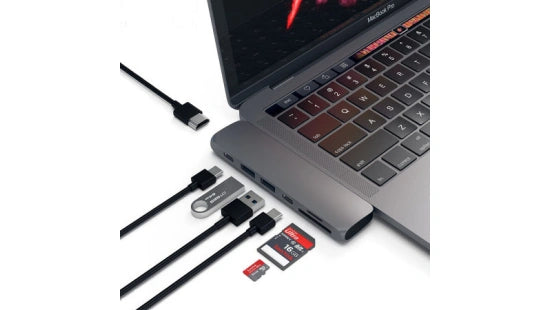
Connect the USB-C cable to both your monitor and computer. If your monitor requires additional power, connect the power adapter. Position the monitor at a comfortable viewing distance and angle.
Configure Display Settings:
Right-click on your desktop and select "Display Settings." Adjust the resolution and refresh rate to match your monitor's capabilities. If using multiple monitors, arrange them in the desired configuration.
Enable Adaptive Sync:
For NVIDIA GPUs, open the NVIDIA Control Panel and enable G-Sync. For AMD GPUs, open AMD Radeon Settings and enable FreeSync.
Calibrate Color Settings:
Use Windows' built-in color calibration tool or a third-party calibration device for optimal color accuracy. Adjust brightness and contrast to suit your environment and preferences.

Image Credit: Webnots website
Configure USB-C Power Delivery:
If your monitor supports USB-C power delivery, ensure it's enabled in the monitor's on-screen display (OSD) menu. Check your laptop's power settings to verify it's receiving power through USB-C.
Set Up Additional Features:
If your monitor has a USB hub, connect any desired peripherals. Configure any built-in features like KVM or PiP/PbP modes through the OSD menu.
Optimize In-Game Settings:
Launch your favorite games and adjust graphics settings to balance visual quality and performance. Enable adaptive sync in the game's settings if available.
Perform a Final Check:
Test different games and applications to ensure everything is working smoothly. Make any final adjustments to monitor settings based on your experience.
By following these steps, you'll ensure that your USB-C gaming monitor is set up for the best possible gaming experience.
7. The Hidden Talent of USB-C Monitors: Beyond Gaming
While USB-C gaming monitors excel in providing smooth, high-quality gaming experiences, their versatility extends far beyond just gaming. Here are some ways USB-C monitors can enhance your productivity and multimedia use:
Streamlined Workstation Setup
USB-C monitors can serve as the central hub for your workstation:
- Single-Cable Solution: Connect your laptop to the monitor with a single USB-C cable for video, audio, data, and power.
- Built-in USB Hubs: Many USB-C monitors feature additional USB-A and USB-C ports, allowing you to connect multiple peripherals through the monitor.
- KVM Functionality: Some monitors, like the Gigabyte AORUS FI32U, include KVM (Keyboard, Video, Mouse) switches, enabling you to control multiple devices with a single set of peripherals.
Enhanced Productivity
USB-C monitors can boost your productivity in several ways:
- Extended Display: Use the monitor as a second screen for your laptop, increasing your workspace and multitasking capabilities.
- Power Delivery: Charge your laptop while you work, eliminating the need for a separate power adapter and reducing cable clutter.
- Quick Switching: Easily switch between work and personal devices without changing cables or settings.
Content Creation and Editing
Many USB-C gaming monitors offer features that benefit content creators:
- Color Accuracy: Monitors like the Asus ProArt Display OLED PA32DCM provide excellent color accuracy (Delta E <1) and wide color gamut coverage, essential for photo and video editing.
- High Resolution: 4K monitors offer the detail needed for precise editing and design work.
- HDR Support: HDR-capable monitors allow for better visualization of high dynamic range content during editing.
Multimedia Entertainment
Beyond gaming, USB-C monitors enhance your overall entertainment experience:
- High-Quality Audio: Some monitors include built-in speakers or audio pass-through, improving your audio setup without additional devices.
- PiP and PbP: Picture-in-Picture and Picture-by-Picture modes allow you to view content from multiple sources simultaneously.
- Versatile Connectivity: Connect gaming consoles, streaming devices, or smartphones to enjoy a variety of content on a large screen.
Mobile Device Extension
USB-C monitors can significantly expand the capabilities of your mobile devices:
- Smartphone Desktop Mode: Some Android phones support desktop modes when connected to a USB-C monitor, providing a PC-like experience.
- Tablet Productivity: Turn your iPad or Android tablet into a mobile workstation by connecting it to a USB-C monitor.
- Portable Gaming: Use the monitor as a larger display for mobile gaming, enhancing your experience with titles that support external displays.
By leveraging these additional features, your USB-C gaming monitor can become a versatile tool that enhances various aspects of your digital life, from work to entertainment and beyond.
8. Conclusion
As USB-C technology continues to evolve, we can expect gaming monitors to become more versatile, powerful, and user-friendly. The integration of cutting-edge display technologies with the convenience of USB-C connectivity will likely result in monitors that not only excel in gaming performance but also serve as central hubs for our increasingly digital lifestyles. If you find this article about USB-C gaming monitor helpful or have any good suggestions, please leave a message. And you also can share this article to your friends or on social media that they may be interested in USB-C gaming monitor.
FAQs
How do I choose the right USB-C gaming monitor for my needs?
When selecting a USB-C gaming monitor, consider the following factors:
Resolution: Choose between 1080p, 1440p, or 4K based on your GPU capabilities and desired visual quality.
Refresh Rate: Higher refresh rates (144Hz, 240Hz, or even 360Hz) provide smoother gameplay, especially for competitive gaming.
Panel Type: IPS panels offer good color accuracy and viewing angles, while VA panels provide better contrast ratios.
Size: Consider your desk space and viewing distance when choosing monitor size.
Power Delivery: Ensure the monitor's power delivery capability matches your laptop's charging requirements.
Additional Features: Look for features like adaptive sync technology (G-Sync or FreeSync), HDR support, and built-in USB hubs.
Can I use a USB-C gaming monitor with a non-USB-C device?
Yes, you can use a USB-C gaming monitor with non-USB-C devices, but you may need adapters or different cables:
For devices with HDMI or DisplayPort: Use an appropriate adapter or cable (e.g., HDMI to USB-C or DisplayPort to USB-C).
For older laptops with USB-A ports: You can use a USB-A to USB-C adapter for data transfer, but you may not get video output or power delivery.
For gaming consoles: Most consoles use HDMI, so you'll need an HDMI to USB-C adapter or cable.
Remember that using adapters may limit some functionalities, such as power delivery or maximum resolution/refresh rate support.
How does the power delivery feature of USB-C gaming monitors work?
USB-C power delivery in gaming monitors works as follows:
The monitor acts as a power source, delivering electricity through the USB-C cable to connected devices.
Power delivery capabilities vary between models, typically ranging from 65W to 100W.
When a compatible device is connected, it negotiates the power requirements with the monitor.
The monitor then supplies the appropriate amount of power to charge the device while simultaneously transmitting video and data signals.
This feature eliminates the need for a separate power adapter for many laptops and other devices, simplifying your setup.
Always check your device's power requirements and the monitor's power delivery specifications to ensure compatibility."